Coding
Setting Up the Code Area
-
From Imports within the Basic menu, select and drag a
from microbit import *block to the coding area and connect it under the# start code hereblock. -
From Loops within the Basic menu, select and drag a
while True:block to the code area and attach it underfrom microbit import *block. -
From the Compass menu, select and drag a
compass.calibrate()block to the code area and attach it below thefrom microbit import *block.

Temperature Sensing
-
From Logic within the Basic menu, select and drag an
if True:block to the code area and attach it within thewhile True:block. -
From the Accelerometer menu, select and drag an
accelerometer.is_gesture(‘shake’)block to the code area and attach it within the True of theifblock. -
From the Display menu, select and drag a
display.scroll(0)block to the code area and attach it within theif accelerometer.is_gesture(‘shake’):block. -
Change the 0 of the
display.scrollblock and type temperature(°).

We can now sense the temperature of the room you are in by shaking the micro:bit.
Light Sensing
-
From Logic within the Basic menu, select and drag an
if True:block to the code area and attach it under theif accelerometer.is_gesture(‘shake’):block. -
From the Buttons menu, select and drag a
button_a.is_pressed()block to the code area and attach it within the True of theifblock. -
From Logic within the Basic menu, select and drag an
if True():block to the code area and attach it within theif button_a.is_pressed():block. -
From Logic within the Basic menu, select and drag a
0 = 0block to the code area and attach it within the True of theifblock. Select the = and choose <.

We can now use the micro:bit to detect if it’s light or dark within a room by pressing the A button on the micro:bit.
Compass Sensing
-
From Logic within the Basic menu, select and drag an
if True:block to the code area and attach it underif button_a.is_pressed():block. -
Right-click on
button_a.is_pressed()block and select duplicate. Attach the duplicated block within the True of theifblock. select a and choose b. -
From the Display menu, select and drag a
display.scroll("Hello World")block to the code area and attach it within theif button_b.is_pressed():block. -
From the Compass menu, select and drag a
compass.heading()block to the code area and attach it within Hello World of thedisplay.scrollblock.

We can now see what the compass baring of the direction the micro:bit is facing by pressing the B button on the micro:bit.
Completed Code
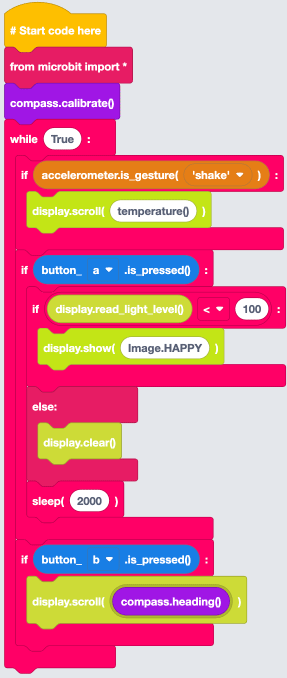
We are now ready to download the code to our micro:bit so we can go out and sense our environment.